Home › Templates › Bulk Certificate Generator from Google Sheets
Bulk Certificate Generator from Google Sheets
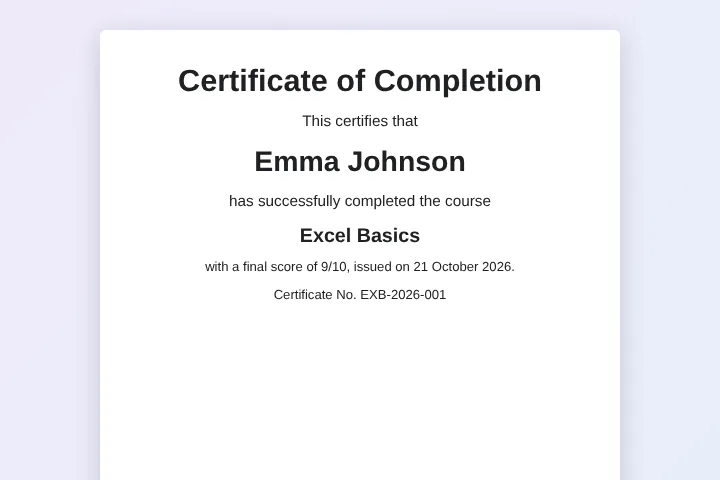
Turn every row of your class list into a ready-to-send PDF certificate, with the student's name, course, score and certificate number filled in.
Use this templateFree · no sign-up to preview · 50 files a month · no watermark
How it works
- Load the class list. Start with the sample students or upload your own CSV or Excel export from your school system. Each column, like Name or Course, becomes a field on the certificate.
- Preview the certificate. Pick any student to see their certificate before anything is created. The design comes from a Google Doc you can change later.
- Create all certificates. Sign in with Google and create every certificate at once as PDFs, Google Docs or both, in one folder in your Drive.
One design, every student
Making certificates one by one is slow and error-prone: a misspelt name or the wrong course on a certificate is embarrassing and has to be printed again. A bulk certificate generator takes the names straight from your list, so what is in the spreadsheet is exactly what is printed.
The template is an ordinary Google Doc. Add your logo, a border, a signature image and the fonts you like. Wherever the student's details should appear, type a tag such as {{Name}}, {{Course}} or {{Date}}.
Certificate numbers and file names
Give each certificate a unique number in a column like Certificate ID and place {{Certificate ID}} on the design. Anyone checking a certificate can match it to the row in your sheet.
File names can use the same columns, for example {{Name}} - Excel Basics certificate. When you share the folder with your team or email a PDF to a student, everyone sees straight away whose certificate it is.
Add new students later
After a run, MergeDoc marks each row as done and adds a link to its PDF. When the next group finishes the course, add them to the same sheet and run again: only the new rows get certificates. If a name was wrong, fix it, clear that row's status and run once more.
Printing and sharing certificates
For printing, set the page to landscape in the Google Doc under File, Page setup before you create the PDFs; every certificate uses the same size and margins. For digital certificates, share the output folder with colleagues or send each student the link written next to their row. A PDF keeps the layout identical on phones, laptops and printers, and the Google Doc version stays editable if a detail needs correcting later.
Sample data
These are the columns the course completion certificate template uses. Each row becomes one document. Download the sample CSV to see the format, or replace it with your own list.
| Name | Course | Score | Date | Certificate ID |
|---|---|---|---|---|
| Emma Johnson | Excel Basics | 9 | 21 October 2026 | EXB-2026-001 |
| Liam Smith | Excel Basics | 8 | 21 October 2026 | EXB-2026-002 |
| Olivia Brown | Excel Basics | 10 | 21 October 2026 | EXB-2026-003 |
| Noah Davis | Excel Basics | 7 | 21 October 2026 | EXB-2026-004 |
Who uses this template
Training centres
Issue completion certificates for every course intake from the attendance sheet, with scores and dates.
Schools and universities
Print awards, attendance certificates and diplomas for a whole year group from one design.
Online course creators
Export your students to CSV and give each one a numbered PDF certificate they can share.
Workshops and webinars
Send attendees a certificate of participation the same day the event ends.
Frequently asked questions
Is the certificate generator free?
Yes, for up to 50 certificates a month, with no watermark. Pro has no MergeDoc limit for $5 a month or $39 a year.
Can I use my own certificate design?
Yes. Any Google Doc can be the template, including one you design with images, borders and custom fonts.
Can I use an Excel file of students?
Yes. Upload the .xlsx or a CSV in MergeDoc. Google converts it to a Google Sheet in your Drive and the certificates are made from it.
Will the PDF look exactly like my design?
The PDF is exported by Google Docs itself, so it matches what you see in the document, including page size and margins.
Where are the certificates saved?
In a MergeDoc Output folder in your Google Drive, or any folder you choose. The link to each file is written next to the student's row.
Related templates
Bulk Name Badge Generator
Event badges with name, role, company and badge type.
Google Sheets to PDF Mail Merge
One PDF per row from any Google Docs template.
Mail Merge Google Docs from Google Sheets
Personalised customer letters from a list of names and offers.
Ready to try it?
Preview the template with sample data, then sign in with Google to create your files.
Use this template